








Applying for a U.S. passport can feel like a daunting task, but thanks to technology, you can now upload your passport photo digitally. This modern convenience saves time and ensures your application is processed more efficiently. However, there’s an art and science to getting this right. From snapping the perfect photo to uploading it correctly, this guide will walk you through every step to make sure your digital passport photo meets the State Department’s strict standards for us passport photo size.
Preparing Your Digital Passport Photo
Photo Requirements by the State Department
Before you start snapping photos for your passport application, it’s crucial to understand the strict guidelines set by the U.S. State Department. These rules exist to ensure that your photo clearly and accurately represents you, which helps prevent identity fraud and ensures smooth processing of your passport. Your photo must be exactly 2 x 2 inches (51 x 51 mm) in size — not smaller, not larger. This uniform size allows automated systems and passport agents to easily verify your identity. Additionally, the background of the photo must be plain white or off-white, completely free of shadows, patterns, or objects that could distract from your face.
Another key requirement is the positioning of your head. Your head should be centered in the frame and take up between 50% and 69% of the photo’s height. This means your face should be large enough to be clearly seen but not so close that parts get cut off. You need to maintain a neutral facial expression with both eyes open and your mouth closed—no smiling, frowning, or raised eyebrows. Clothing should be everyday attire without uniforms, hats, or glasses unless worn daily for religious reasons or medical necessity. These rules might seem a bit strict or even picky, but they ensure your passport photo is standardized for security and clarity.
How to Take a Passport Photo at Home
Good news — you don’t have to visit a professional studio or pay extra fees to get a proper passport photo. With a little preparation, you can take a high-quality digital passport photo at home. Start by finding a spot with plenty of natural light. Morning or late afternoon sunlight near a window usually works well. If natural light isn’t available, use bright white bulbs to illuminate your face evenly, avoiding harsh shadows or glares. Stand in front of a plain white or off-white wall to create a simple, distraction-free background.
Use a smartphone or a digital camera with a high-resolution setting to capture your photo. Make sure the camera lens is clean and hold the device at eye level to avoid distortion. Keep a neutral expression, look directly into the camera lens, and keep your head straight—not tilted or turned. It’s a good idea to take several shots so you can choose the best one later. Remember, slight adjustments in lighting or posture can make a big difference in meeting the passport photo requirements.
Editing and Formatting Your Photo
Recommended Editing Tools
When it comes to editing your digital passport photo, using the right tools can make the process much easier and ensure your photo meets all government requirements. Luckily, there are plenty of free online editors tailored specifically for passport photos. These tools can automatically adjust size, crop, and background color so you don’t have to guess. Here are some of the most popular options:
- Passport Photo Online – specialized for passport photo compliance, it guides you through size and background corrections automatically.
- Photoshop Express – a free app with powerful editing tools including cropping, brightness adjustment, and file formatting.
- Canva – user-friendly with templates and manual editing options that let you resize and fine-tune your image.
These platforms allow you to upload your photo, edit it to meet specifications, and save it in the correct format for submission. Using these tools reduces the chance your photo will be rejected.
How to Crop and Resize Your Photo
Cropping and resizing are crucial steps because your photo must meet exact size and framing rules. To make sure your photo complies, follow these key points:
- Crop exactly to 2 x 2 inches (51 x 51 mm). This is the official passport photo size.
- Position your head so it covers 50% to 69% of the photo’s height. The space from the chin to the top of your head should fit nicely within this range.
- Keep the photo square. The width and height must be equal to avoid distortion.
- Use grid or ruler tools in your editor (like Photoshop Express or Canva) to measure and crop accurately.
- Avoid stretching or skewing the image. The photo must remain natural and proportional.
Many passport photo apps automate these adjustments, but always double-check to ensure the head size and placement are correct.
Ensuring File Format and Size Compliance
To successfully upload your photo to the State Department website, it must meet specific technical requirements. These include:
- JPEG format: The photo file must be saved as a JPEG (.jpg) file, which is the accepted format for passport photos.
- File size less than 240 KB: Large files can cause upload errors, so compress the image if needed while preserving quality.
- Resolution of 600 x 600 pixels recommended: This resolution offers a good balance between detail and file size for clear identification.
Before submitting, verify your photo file meets all three criteria. Many photo editing tools will display file size and format after saving, or you can check the file’s properties on your computer.
Creating Your Passport Application Account Online
Registering on the Official Website
Before you can upload your digital passport photo, the first step is to create an account on the official U.S. Department of State website. This ensures your application and personal information remain secure throughout the process. To start, visit the State Department’s passport application portal and click on the registration or “Create Account” button. You will be prompted to enter a valid email address and create a strong password. Make sure your password is secure—combining letters, numbers, and symbols—to protect your account. After submitting your credentials, you will typically receive a verification email; follow the link provided to confirm your email address.
Once your email is verified, the system may require additional identity verification steps to confirm your identity, such as answering security questions or providing personal details like your Social Security number. This is a necessary safeguard to prevent fraud and unauthorized access. Completing these steps carefully and accurately will allow you to access the full passport application system, where you can start the process of applying for or renewing your passport, including uploading your digital photo.
Navigating the Passport Application Portal
After successfully registering and logging in, you will be directed to the main dashboard of the passport application portal. Here, the interface is designed to guide you step-by-step through your application. Look for a clearly marked section titled “Apply for Passport” or “Start New Application.” Clicking this will open the online form and provide access to upload your photo and other necessary documents.
The portal is user-friendly, with prompts and tips along the way to help you avoid mistakes. For example, it will remind you of the photo requirements before the upload step and may offer a preview of your uploaded image. Make sure to save your progress regularly, as this will allow you to return to your application later without losing any entered information. Familiarizing yourself with this portal will make the entire passport application process smoother and faster.
| Step | Description | Tips | Important Notes |
| Register on Official Website | Enter email and create password | Use a strong password | Verify email via confirmation link |
| Identity Verification | Provide additional personal details | Answer questions carefully | Required to prevent fraud |
| Log into Portal | Access application dashboard | Familiarize yourself with interface | Save progress regularly |
| Locate Application Section | Click “Apply for Passport” | Follow prompts | Read instructions before proceeding |
| Upload Photo | Use “Choose File” to select photo | Confirm upload and preview image | Only JPEG format accepted; max size 240 KB |
Uploading Your Digital Passport Photo
Step-by-Step Upload Instructions
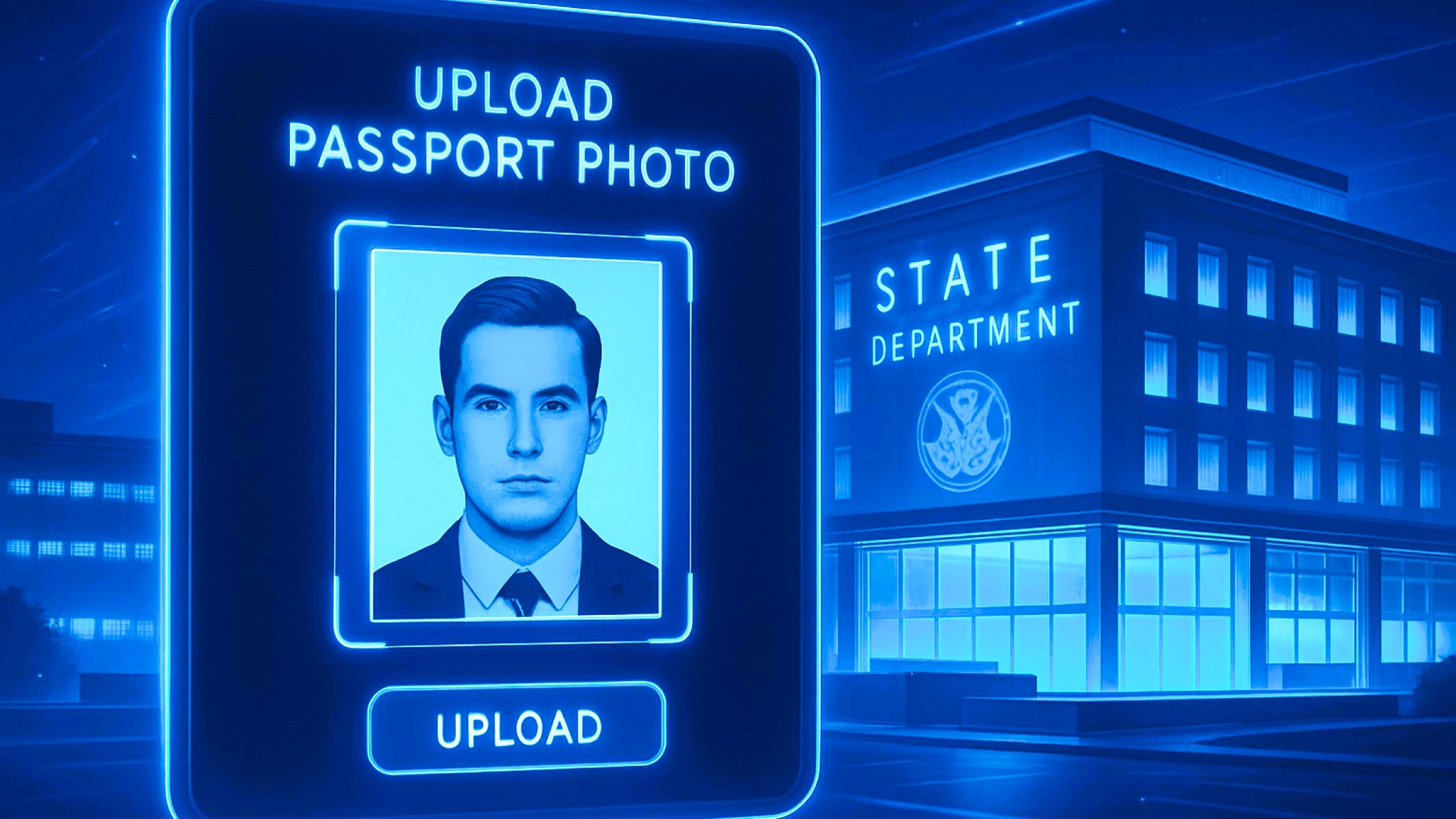
Uploading your digital passport photo might seem straightforward, but following the correct steps ensures it’s accepted without delays. First, locate the photo upload section within your application form—this is often labeled clearly as “Upload Photo” or “Passport Photo.” Once there, click on the button that says “Choose File” or “Browse,” which will open a file selector window on your device. Navigate through your folders to find the photo you previously prepared according to the State Department’s specifications, and select it for upload.
After selecting your photo, confirm the upload by clicking an “Upload” or “Submit” button. The portal will usually display a preview of your image immediately, allowing you to verify that it appears correctly. If your photo meets all the guidelines—correct size, clear image, proper background—the system will accept it, and you can proceed with the rest of your application. If not, you’ll receive an error message prompting you to upload a new photo that fits the requirements. This review step is essential to prevent rejection of your passport application due to photo issues.
Troubleshooting Common Upload Issues
Sometimes, technical issues can prevent successful uploading of your passport photo. One of the most common problems is that the file size is too large. To fix this, you can use free online compression tools that reduce the photo size without significantly impacting image quality. Another frequent issue is uploading a photo in the wrong file format—remember, the State Department only accepts JPEG files, so if your photo is in PNG, BMP, or another format, you will need to convert it before uploading.
A blurry or pixelated image is another red flag that can cause your application to be rejected. This usually happens if the photo resolution is too low or if the image was overly compressed. Always use a high-resolution photo that maintains sharpness after resizing. If the portal rejects your upload, revisit the editing step to improve image clarity and try uploading again. Patience during this process will save time in the long run.
How to Confirm Successful Upload
After you upload your photo, the system will provide immediate feedback to confirm whether the upload was successful. Typically, you will see a confirmation message on the screen that states your photo has been received and accepted. Alongside this message, a thumbnail preview of your uploaded photo will be displayed. This preview is your chance to verify that the photo looks exactly as you intended—clear, properly sized, and with the right background.
If everything looks correct, you can confidently proceed to the next steps of your passport application. If the preview shows any issues such as poor quality, wrong dimensions, or inappropriate background, the portal will usually prompt you to upload a new photo before moving forward. Always save or screenshot the confirmation page for your records. This serves as proof that your photo was successfully uploaded, which can be helpful if you need to follow up later.